Export your LinkedIn connections. The simple way.
LinkedIn already lets you download your connection list. It takes a few clicks, costs nothing, and gives you a tidy CSV to work from.
Connections.csv
ready to download
5
easy steps
A quick export, not a full sales database.
This is a good move when you want a personal backup, a cleaner contact list, or a spreadsheet you can sort through. It is not built for managing an active pipeline or launching outreach.
What you’ll get
A compact contact list, ready to drop into a spreadsheet.
First name
Last name
Job title
Company
Email address
when visible to connections
Five clicks. One clean CSV.
Follow these in order. The whole thing is easier on a desktop browser.
- 01
Open your profile menu
Log in to LinkedIn, then select your profile icon in the top-right corner.
Open linkedin.com - 02
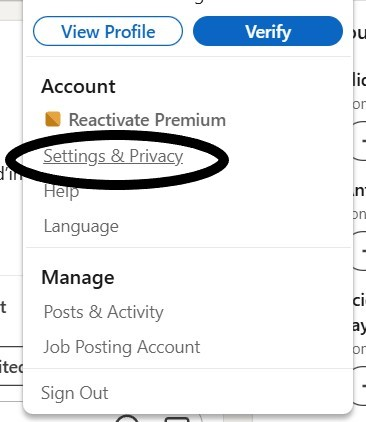
Choose Settings & Privacy
Under Account, choose Settings & Privacy. It is the small link in the middle of the menu.
- 03
Open Data Privacy
Use the left-hand menu to open Data Privacy, then scroll down to Get a copy of your data.
- 04
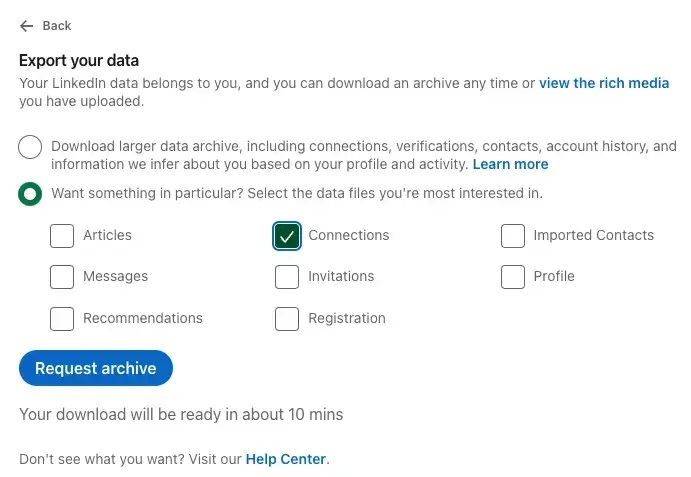
Select Connections only
Choose the option for a specific download, check Connections, and leave the other boxes unchecked.
- 05
Request your archive
Press Request archive. LinkedIn will send your CSV file to the email connected to your account.
Watch for the email.
LinkedIn says your download should be ready in about 10 minutes. When the email arrives, download the CSV and save a copy somewhere you will remember.
Back to top